Exploring Apps Today


Today I get to collaborate with my peers to explore and share iPad apps for teachers. With so many apps, so little time, and so many contributors, the decision about which apps to share could get complicated so I tried not to over-think it. Here are some apps I've chosen to share. 

Watch this list grow as I add the ideas of others to my playlist!


A Google Docs Template for Multimedia Research


The Google Docs Presentation is well-suited for use as a starting point  for short student driven research projects because of the availability of efficient integrated research tools right on the page. To introduce students and teachers to the built in features, I created a  simple template to guide the learning and help everyone discover the usefulness of the tool. 


An Updated Digital Differentiation Model

This is part of a Digital Differentiation model, my way i of weaving a web of flexible tools together for teaching and learning. To keep the model relevant, frequent updates are required, as new tools and trends emerge. 

To access the most current resources, please click on the tab at the top of this blog:

Digital Differentiation - Current 


A Guide to Facilitating an Interactive Learning Project

I have been creating a lot of student projects that use ThingLink as a tool for learning. I have also received a handful of questions from teachers who are highly interested in facilitating a similiar project of their own, but need help with the management involved.

"With so much active student engagement, how do you manage a project like this?"

Edmodo & ThingLink: Extend the Walls of Your Classroom


Edmodo is a free and secure social learning platform for teachers and students to collaborate and connect in the  24/7 classroom. The design and functionality of Edmodo is similar to Facebook, but the focus is on teaching and learning within a protected environment. Students don't even need an email account to sign up.

Teachers and students can extend the learning by posting messages, holding online discussions, picking up work and turning it in.  Edmodo supports a variety of multimedia to provide students with flexible learning paths  including links, images, video and interactive graphics created with ThingLink.


Bloom's Taxonomy Presented Visually


Inspired by Kathy Schrock's Bloomin' iPad, I decided to use Scoop.it to create a collection of visual resources to support Bloom's Revised Taxonomy. View the collection on Scoop.it.


The Blooming Orange

I've always been interested in new ways to view and think about Bloom's Taxonomy and the folks at Learning Today have created a poster worth sharing. To help teachers get thinking about ways to apply Bloom's higher-order thinking skills in the classroom, they've put a spin on the traditional hierarchy and  limited the number of verbs in each section to create The Blooming Orange.

They've popped Bloom's verbage into the segments of an orange and intentionally depicted it as a circle to illustrate the fact that often these skills do not occur in isolation, they often occur simultaneously. This Blooming Orange presents itself as a teacher-friendly tool for planning and possibly an easier way for everyone to think about Bloom's. Be sure to click on the link below to visit the Learning Today blog and print a copy of this poster to hang  in your classroom.

WordStash: Build Vocabulary Cards

WordStash is a dictionary based website for helping students learn vocabulary and more. Teachers can sign up for a free account to create and store word lists to support written text. With the click of a button, users can access definitions, example sentences from context  and pictures to support the word. Once created, teachers will have a set of digital flash cards to use to help students practice the words and concepts through a couple of no-nonsense games and quizzes. Students can access the vocabulary activities through a link, without logging in.

At first glance, this seems like a handy tool for reviewing vocabulary, but after experimenting with the tool myself, I realized that the tool can also be used to help students build their own knowledge about vocabulary terms and concepts, which makes it a much more appealing tool.

At  it's most basic level, users can create a word card in a few quick and simple steps.
  1. Add term
  2. Choose the appropriate part of speech from a list.
  3. Click on the appropriate definition to add it to the card.

  4. Add an image from the Flicker or Wikipedia database. 
Following those steps will yield word cards like the example below.

 
My goal with this activity was to create word cards to support understanding of The Louisiana Purchase, so I decided to dig a little deeper to create a more fine-tuned word card. Here are the modified steps followed:
  1. Add term
  2. Choose from a list to determine the part of speech
  3. Read the given definitions, then search for an article on the Internet that uses the word in context. Word stash has a button to find context clues, but I found it easier to do my own search.
  4. From the context, develop your own definition of the word. Type that definition on the word card..
  5. Add a more accurate image from the database by typing in a more manually adjusting the search term. In this case, the term "territory" yielded a generic image, but type in "Louisiana Purchase" did the trick.
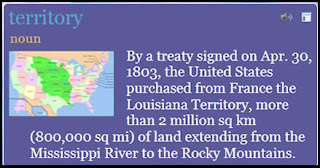
Truly, by building my own specific vocabulary card I also developed my own understanding of the word as it was related to the content and I think this could be a very meaningful activity for students.

Sign up for a free teacher account and try WordStash for yourself.

Lingro - Turn digital text into a clickable dictionary

Lingro is an amazing online tool that turns any website or digital text file into an interactive dictionary where users can click on a word to view it's definition and hear it's pronunciation. Support by 12 languages, Lingro is also a very useful tool for translating text.

Lingro is easy to use. Just copy and paste any web address into Lingro's web browser and click on a word, or use the file viewer to upload a document and translate it in the same way. One of the most impressive features of Lingro is that it stores and remembers all the words you click on and allows you to easily create and store words lists. Then, with the click of a button, Lingro turns your word lists into an online flash card game.

This tool does not require a login to use the most basic features so it can be a handy tool for students without an email address, but teachers should create a free account to take advantage of additional features, such as storage, history and word lists.

.Try Lingro for yourself

10 Minutes of Tech for Busy Teachers

I used JogTheWeb to create a mixed-bag of quick tech tools for teachers to explore in ten minutes or less. All of the tools in this jog are extremely user-friendly, free and require no login. The tools are simple and versatile enough to assist in the teaching of just about any content to students of all ages. Ten minutes is all it will take to check out one of these tools and add it to your tech toolkit of resources.
10 Minutes of Tech for Busy Teachers

Share